
Use Readuet on an e-reader with KOReader
Install the Readuet plugin for KOReader to open your books on an e-ink reader, translate words with a long press and keep your place in sync with the app.
What the plugin does
KOReader is a free reading app for e-ink devices. The Readuet plugin adds a Readuet menu to it, so that on your e-reader you can:
- open the books in your Readuet library, your own uploads included, and add free books from the library
- long-press a word to see Readuet's translation of it in its sentence, and save it to your words for review in the app
- see the words you are learning underlined on every page
- keep your place in sync with the Readuet app, with nothing to set up by hand
The plugin is free and works on every plan. Syncing your place comes with Solo or Duet.
Install it
You need KOReader already on the e-reader. If it is not there yet, follow KOReader's installation guide for your device first.
- Download the plugin: readuet.koplugin.zip.
- Unzip it. You get a folder called
readuet.koplugin. - Connect the e-reader to your computer over USB and copy that folder into KOReader's
pluginsfolder. The table below shows where it is. - Eject the e-reader and restart KOReader. The plugin appears under Tools → Readuet.
| Device | Copy the folder into |
|---|---|
| Kobo | .adds/koreader/plugins/ |
| Kindle | koreader/plugins/ |
| PocketBook | applications/koreader/plugins/ |
| Android | koreader/plugins/ in the device's internal storage |
On a Kobo the .adds folder is hidden. If you can't see it, turn on hidden files in your computer's file manager.
Sign in
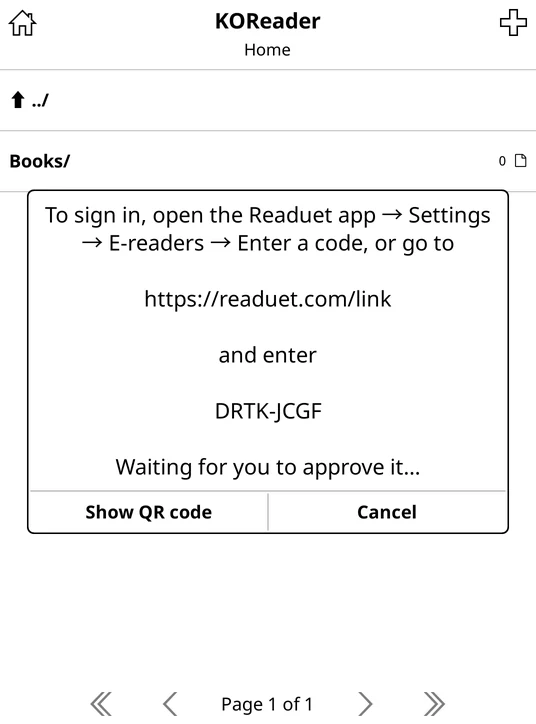
- On the e-reader, open Tools → Readuet → Sign in…. It shows a short code.
- In the Readuet app, open Settings → E-readers → Enter a code. Or, on any phone or computer, go to readuet.com/link. The e-reader can also show a QR code for that page.
- Enter the code and choose Sign in.
There is nothing to type on the e-reader. Signing in an e-reader needs a free Readuet account; if you have been reading as a guest, the app offers to create one first, and your books and words come with you.
Open a book
Tools → Readuet → My library lists your Readuet books. Choose one and it is downloaded and opened. Free books searches the free library: add a book and it opens straight away.
You can also open a book you copied to the e-reader yourself. If it is the same file you uploaded to Readuet, the plugin recognises it.
Translate a word
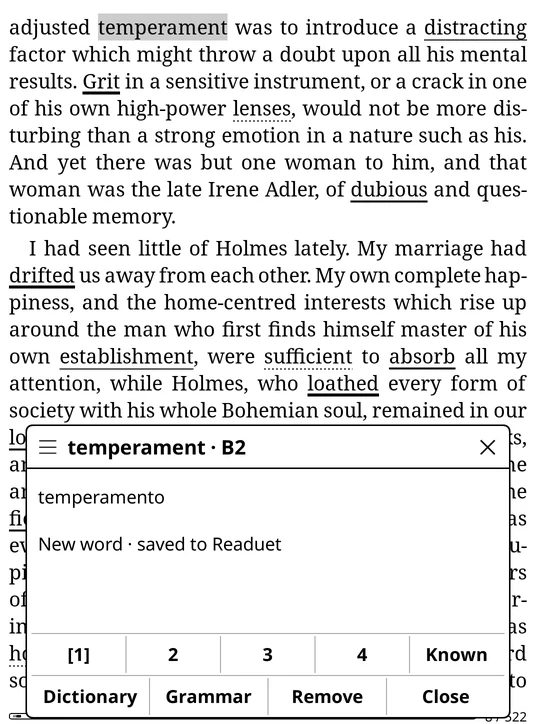
Long-press a word. Readuet's translation appears, explained in the sentence you are reading, and the word is saved to your words, just as a tap in the app saves it. Use the buttons to set its level from 1 to 4, mark it Known, or Remove it. Dictionary opens KOReader's own dictionary instead.
To translate a whole sentence, select it and choose Readuet in the menu that appears.
On Free, the daily translation limit is the same as in the app. When it runs out, the plugin offers KOReader's dictionary instead.
Prefer KOReader's dictionary on a long press? Turn off Tools → Readuet → Long-press a word to translate with Readuet. Readuet stays in the selection menu.
Words you are learning
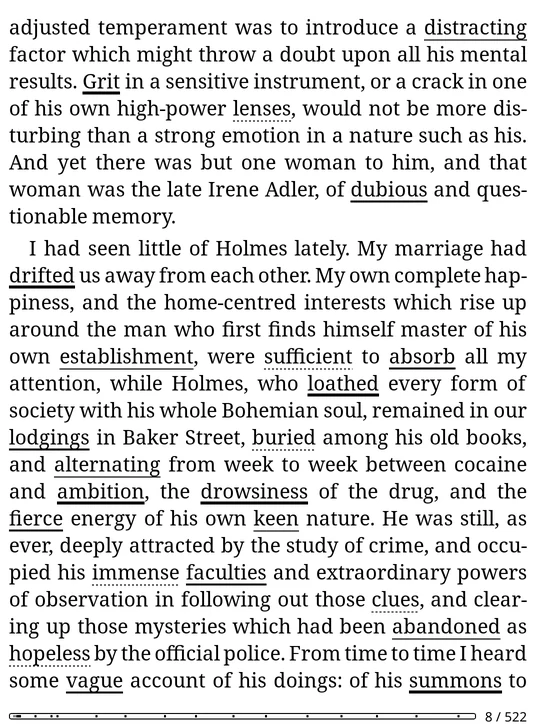
On every page of a book from Readuet, the words you are learning are underlined. The newer the word, the heavier the line; known words are left plain. Underlines need a connection once, when you open the book, and then work offline. To turn them off, use Tools → Readuet → Mark words you're learning.
Keep your place in sync
With Solo or Duet, signing in also sets up KOReader's Progress sync to go to Readuet and turns on automatic sync. Your place moves between the e-reader and the app by itself: the narrator in the app picks up at the sentence you reached on the e-reader, and the other way round.
KOReader syncs when you open or close a book, and turns Wi-Fi on for it if needed. If your e-reader was already syncing to another server, the plugin asks before changing that. To set it up later, use Tools → Readuet → Set up progress sync.
Sign out or remove an e-reader
On the e-reader, choose Tools → Readuet → Sign out. Or, in the app, open Settings → E-readers, where every signed-in e-reader is listed, and choose Remove. A removed e-reader is signed out within a few minutes and stops syncing.
Keep the plugin up to date
The plugin updates itself. Once a day, when the e-reader is already on Wi-Fi, it checks readuet.com for a new version and asks before installing it. Choose Update, and KOReader restarts with the new version. If you choose Later, the update waits at the top of Tools → Readuet. To check yourself, use Tools → Readuet → Advanced → Check for updates.
This works from the first version that has it. If yours doesn't offer updates yet, install the plugin over USB once more, as above.
If something goes wrong
| What you see | What to do |
|---|---|
| No Readuet in the Tools menu | Check that the folder is called readuet.koplugin and sits directly in plugins, not in another folder inside it. Restart KOReader. |
| The code is not accepted | Codes expire after 10 minutes. Choose Sign in… again for a new one. |
| The book doesn't open | KOReader can't open AZW3 files. Upload the book as EPUB instead. |
| A long press opens the dictionary | The e-reader is offline, or the daily limit on Free is used up. Connect to Wi-Fi and try again. |
| Your place doesn't sync | Syncing your place needs Solo or Duet. If you have one, choose Tools → Readuet → Set up progress sync. |
Still stuck? Contact us.
Still stuck? The support page covers billing, account deletion and how to reach us.